
目录

- autoloadUpdated plugins12年前
- my_pluginsAllow to install custom plugins9年前
- sources_forkedRestore spellcheck colors, fix #418 & #548 (#707)3年前
- sources_non_forkedUpdated plugins1年前
- temp_dirsRe-updated the undo dir git ignore10年前
- vimrcsFix autocommand error when opening command line window (#731)3年前
- .gitignoreAllow to install custom plugins9年前
- LICENSECreate LICENSE10年前
- README.mdClarifying `my_configs.vim` docs in `README` (#745)2年前
- install_awesome_parameterized.shUpdate instructions on updating vimrc (#614)5年前
- install_awesome_vimrc.shRun code directly from vim (#594)5年前
- install_basic_vimrc.shChange permission of install scripts to execute (#468)6年前
- update_plugins.pyRemove the support for parallel updates2年前
邀请码
版权所有:中国计算机学会技术支持:开源发展技术委员会
京ICP备13000930号-9
京公网安备 11010802047560号
The Ultimate vimrc
Over the last 10 years, I have used and tweaked Vim. This configuration is the ultimate vimrc (or at least my version of it).
There are two versions:
I would, of course, recommend using the awesome version.
How to install the Awesome version?
Install for your own user only
The awesome version includes a lot of great plugins, configurations and color schemes that make Vim a lot better. To install it simply do following from your terminal:
Install for multiple users
To install for multiple users, the repository needs to be cloned to a location accessible for all the intended users.
Naturally,
/opt/vim_runtimecan be any directory, as long as all the users specified have read access.Fonts
I recommend using IBM Plex Mono font (it’s an open-source and awesome font that can make your code look beautiful). The Awesome vimrc is already setup to try to use it.
Some other fonts that Awesome will try to use:
How to install the Basic version?
The basic version is just one file and no plugins. Just copy basic.vim and paste it into your vimrc.
The basic version is useful to install on remote servers where you don’t need many plugins, and you don’t do many edits.
How to install on Windows?
Use gitforwindows to checkout the repository and run the installation instructions above. No special instructions needed ;-)
How to install on Linux
If you have vim aliased as
viinstead ofvim, make sure to either alias it:alias vi=vim. Otherwise,apt-get install vimHow to update to latest version?
Just do a git rebase!
Some screenshots
Colors when editing a Python file:
NERD Tree plugin in a terminal window: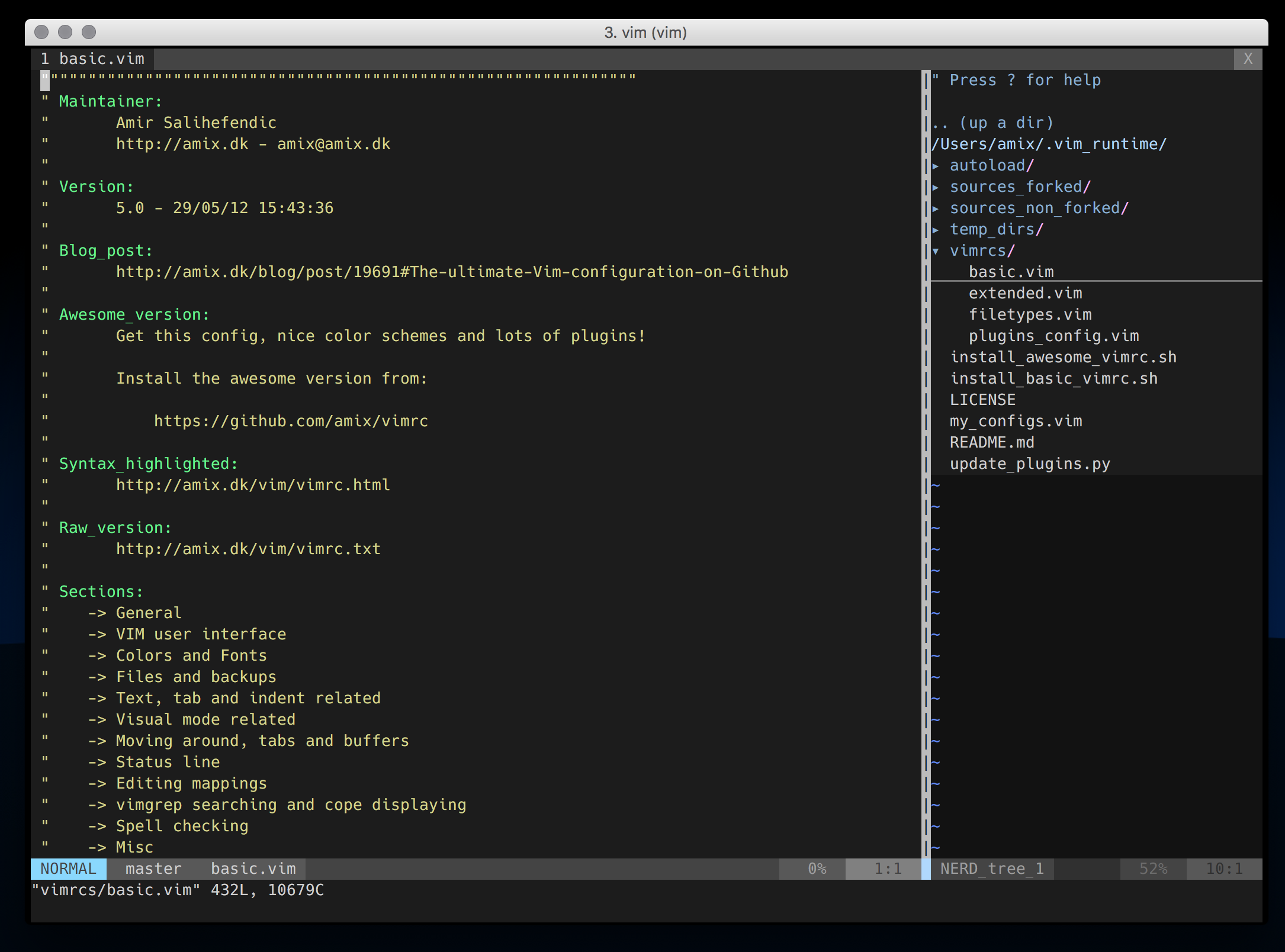
Distraction free mode using goyo.vim and vim-zenroom2: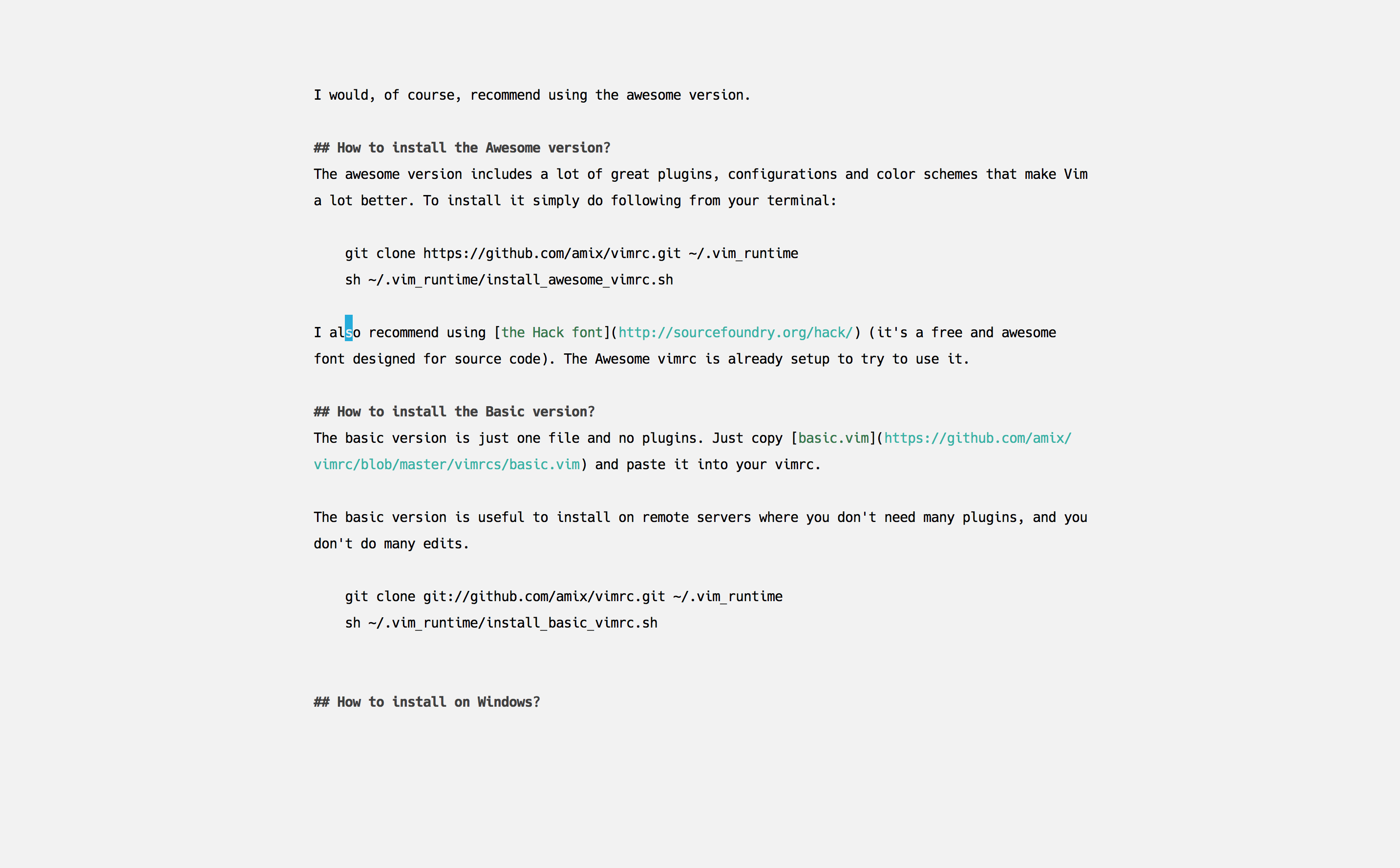
Included Plugins
I recommend reading the docs of these plugins to understand them better. Each plugin provides a much better Vim experience!
the_silver_searcher(ag) or ack – a wicked fast grep<leader+o><Ctrl+F>gfgccto comment out a line (takes a count),gcto comment out the target of a motion.gcuuncomments a set of adjacent commented lines:GistcommandIncluded color schemes
Type
:colorscheme <Tab>to try out color schemes on the fly, or add the command to~/.vim_runtime/my_configs.vim(see below), for examplecolorscheme pyte.Included modes
How to include your own stuff?
After you have installed the setup, create an empty
~/.vim_runtime/my_configs.vimfile for further customization. This file’s syntax matchesvimrcsyntax, and addvimrclines likeset numberas needed.For instance, my
my_configs.vimlooks like this:You can also install your plugins, for instance, via pathogen you can install vim-rails:
You can also install plugins without any plugin manager (vim 8+ required):
mkdir -p ~/.vim_runtime/pack/plugins/startgit clone --depth=1 git://github.com/maxmellon/vim-jsx-pretty ~/.vim_runtime/pack/plugins/start/vim-jsx-prettyKey Mappings
The leader is
,, so whenever you see<leader>it means,.Normal mode mappings
Fast saving of a buffer (
<leader>w):Map
<Space>to/(search) and<Ctrl>+<Space>to?(backwards search):Disable highlights when you press
<leader><cr>:Smart way to move between windows (
<ctrl>jetc.):Closing of the current buffer(s) (
<leader>bdand (<leader>ba)):Useful mappings for managing tabs:
Switch CWD to the directory of the open buffer:
Open
ack.vimfor fast search:Quickly open a buffer for scripbble:
Toggle paste mode on and off:
Visual mode mappings
Visual mode pressing
*or#searches for the current selection:When you press gv you
Ack.vimafter the selected text:When you press
<leader>ryou can search and replace the selected text:Surround the visual selection in parenthesis/brackets/etc.:
Insert mode mappings
Quickly insert parenthesis/brackets/etc.:
Insert the current date and time (useful for timestamps):
Command line mappings
$q is super useful when browsing on the command line. It deletes everything until the last slash:
Bash like keys for the command line:
Write the file as sudo (works only on Unix). Super useful when you open a file and you don’t have permissions to save your changes. Vim tip:
Plugin related mappings
Open bufexplorer to see and manage the current buffers (
<leader>o):Open ctrlp.vim plugin to quickly find a file or a buffer (
<leader>jor<ctrl>f):NERD Tree mappings:
goyo.vim and vim-zenroom2 lets you only focus on one thing at a time. It removes all the distractions and centers the content. It has a special look when editing Markdown, reStructuredText and textfiles. It only has one mapping. (
<leader>z)vim-multiple-cursors mappings to manage multiple cursors at once:
vim-yankstack mappings to manage the kill-ring (clipboard):
ctrl-p mappings to easily find and open a file, buffer, etc.:
vim-snipmate mappings to autocomplete via snippets:
vim-surround mappings to easily surround a string with
_()gettext annotation:ale to easily go to the next Ale syntax/lint error:
vim-indent-guides the default mapping to toggle the plugin is (
<leader>ig)vim-fugitive to copy the link to the line of a Git repository to the clipboard:
Spell checking
Pressing
<leader>sswill toggle spell checking:Shortcuts using
<leader>instead of special characters:Running Code
To run code directly from vim, press
F5. The currently open code will execute without you having to type anything.Can be used to execute code written in C, C++, Java, Python, Go, Octave, Bash scripts and HTML. To edit how you want your code to be executed, make changes in the file
~/.vim_runtime/vimrcs/extended.vimCope
Query
:help copeif you are unsure what cope is. It’s super useful!When you search with
Ack.vim, display your results in cope by doing:<leader>ccTo go to the next search result do:
<leader>nTo go to the previous search results do:
<leader>pCope mappings:
How to uninstall
Just do following:
~/.vim_runtime.vim_runtimein your~/.vimrcLooking for a remote-first job?
Maintaining this Vim configuration isn’t my day job. Daily I am the founder/CEO of Doist. You could come and help us build the workplace of the future while living a balanced life (anywhere in the world 🌍🌎🌏).
PS: Using Vim isn’t a requirement 😄